
Big Picture – What is the “Internet”?
The “Internet” is really just a bunch of computers all networked together so that one computer in the network can exchange information with other computers in the network.
Little Picture – How your home computers and devices are connected to the Internet
This image shows how a typical home user is connected to the Internet.

Most home users access the Internet via a local router that is connected to some sort of Internet Service Provider (ISP). The ISP can use a number of technologies to provide the physical connection (Cable, Phone Line, Satellite, etc). But regardless of the physical connection, the router will be sending and receiving “packets” to other computers on the network. Those packets might contain many kinds of data:
- Web Site Address to View
- Web Page from Web Site
- Images from Web Site
- Email messages
- Literally any kind of data
For this discussion, we don’t really care what kind of data is being transferred in the packets. We just care that the packets can be sent and received with some reliability to and from some remote computer that we know by name or address (such as magnoliamobilenews.com).
Packets Out and Packets In
The packets sent from your computer typically go first to your local router. That router looks at the destination address in the packet and decides where to send it next. If the destination address is on the local network (maybe another computer, printer, or device in your home), then the router will send the packet directly to its destination in your own local network. But if the destination address is not on the local network, then the router will forward that packet to some other computer designated to handle non-local traffic. That will typically be your ISP.
Similarly, packets coming into your router from the ISP will also have a destination address. Your router will decide which computer or device is associated with that address and deliver it appropriately.
Router’s Job
As described above, the job of a “router” is to simply move packets between computers that are locally connected together through that router. That typically involves several computers, printers, and possibly other devices. To do this, the router will need some “configuration” information that describes these computers, devices, connections, and restrictions.
Examples of Setup
The following images show various user interface pages presented by popular routers. These pages can usually be viewed by browsing to a fixed web site address (such as 192.168.1.1). That address is “served” by the router itself, and it allows you to set a large number of features. A few of these pages are shown here.
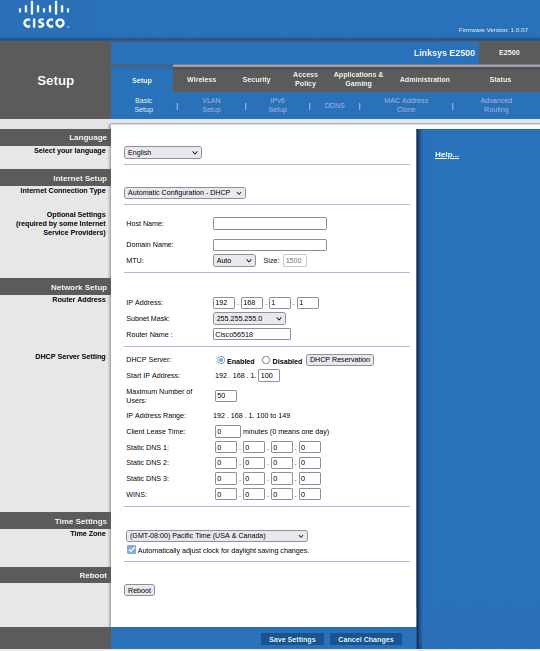
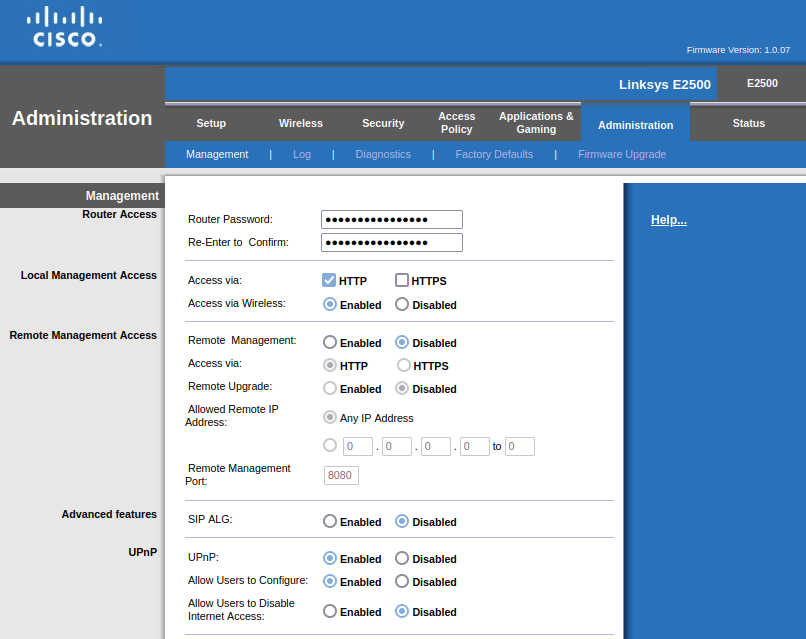

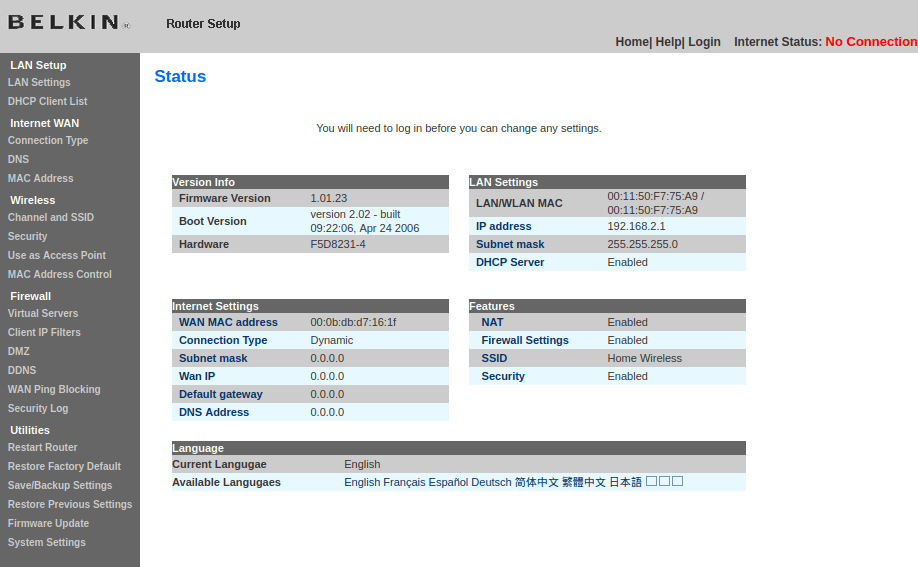
Regardless of the brand of router, they will typically provide a page that lets you describe your “remote” connection. The remote connection will typically come through some sort of hardware device (telephone modem, cable modem, satellite interface, etc). The details of that remote connection can usually be found by asking the provider of that connection.
Most routers will also typically allow configuration of the local network. Some addresses in the local network might be “static” so that they never change. For example, you might always want your printer to have the same local address so you can always find it. But you might want other addresses to be assigned dynamically. For example, when you bring a new computer into the house, you may not care what address it gets. This is called dynamic configuration and it can also be set up via your router.
Most modern routers also support wireless modes. The router configuration pages will provide a way to specify various details for wireless configuration. Most important for wireless configuration is a security mode and password.
Unfortunately, all of these settings differ between manufacturers and even between routers produced by the same manufacturer.
Conclusion
The August 19, 2021 MMCC meeting demonstrated a few different router brands and models. While this class did not provide an exhaustive review of all routers, it was a nice introduction to the topic of router configuration with a few easy examples. Future classes may dive into more details as needed.
 Magnolia Mobile News