
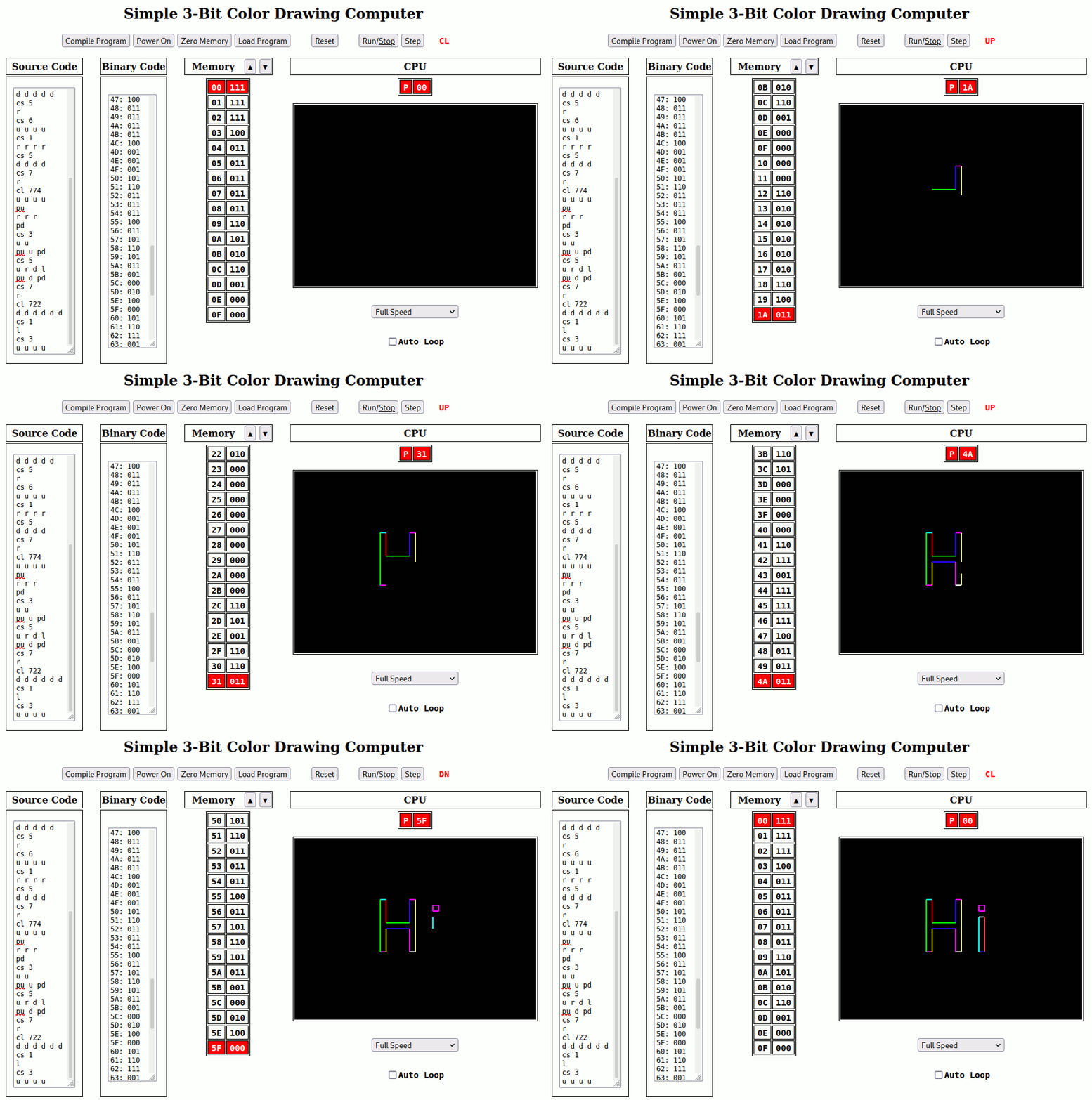
This computer can draw any shape made up of short horizontal and vertical segments. Each instruction is 3 bits, but the color instructions take additional bits to define the color (3 bits for a short color and 9 bits for a long color).
This computer can be programmed in binary (1’s and 0’s), but it can also be programmed with short 1 and 2 letter instructions as given in this table:
| Instruction Name | instruction Code | instruction Binary |
|---|---|---|
| Move or Draw Down | D | 000 |
| Move or Draw Right | R | 001 |
| Move or Draw Left | L | 010 |
| Move or Draw Up | U | 011 |
| Pen Up (don’t draw) | PU | 100 |
| Pen Down (draw) | PD | 101 |
| Color Short | CS | 110 |
| Color Long | CL | 111 |
Because this computer supports both Source Code input and Binary Code input, there are 2 text entry boxes in the simulation. The box on the left (“Source Code”) accepts the source instructions as shown above (D, R, L, U, PU, PD, CS, CL). The box on the right (“Binary Code”) accepts binary instructions (000, 001, 010, 011, 100, 101, 110, 111). While you can enter binary instructions directly into the “Binary Code” box and run it, you can also enter source instructions into the “Source Code” box and push the “Compile Program” button to translate your “human friendly” instructions into binary. In either case, the resulting binary program can be loaded into the simulator’s memory using the “Load Program” button.
You can run this computer simulation using this link: Three Bit Color Drawing Computer
You can also download this simple simulation below. It will be a “ZIP” file which can be unpacked with most operating systems. The unpacked file will be named Simple_3Bit_Color_Drawing.html. If you double click on that file it should open the simulation in your web browser.
To run the simulation, enter a short program in the “Source Code” box on the left. Try the program “cs 4 u r d l” which will draw a small red square (“cs 4” selects red, and “u r d l” draws the square by moving up, right, down, and left). Then click the “Compile Program” button. This will translate (compile) your source code into binary code in the “Binary Code” box. Then click the “Load Program” button to copy the program into Memory. Finally, click the “Run/Stop” button (upper right) to make the computer actually run the program from Memory. It should draw a small red square in the center of the screen. It will normally stop when done (unless the “Auto Loop” box is checked). You can run it again with the “Run/Stop” button or step through the program one instruction at a time with the “Step” button. Remember that the simulation will highlight the NEXT instruction to be executed.
Play with it. It’s all software, so you can’t hurt anything!
 Magnolia Mobile News