
TypingTutor is a simple JavaScript program to help build typing skills.
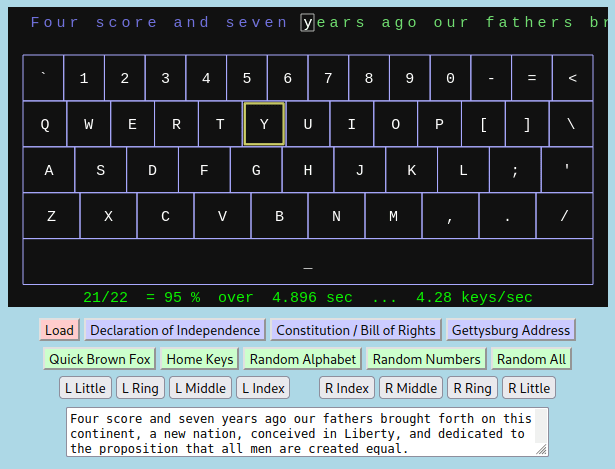
The program will draw a keyboard and highlight the next key to be typed. The text to be typed shows up along the top with the next key to be typed in white, the previous keys in blue, and the upcoming keys in green. For example, the image above shows part of the Gettysburg Address being typed. The next key to be typed is the “y” from the word “years”. The “y” is shown in white, the previous text (“Four score and seven “) is shown in blue. The upcoming text (“ears ago our fathers …”) is shown in green. Also note that the “y” key on the keyboard is highlighted with a yellow border to help you find it.
The program will start with the “quick brown fox” text (“The quick brown fox jumps over the lazy dog.”). This short sentence uses every alphabetic key (a-z) on the keyboard. It’s great for practice. But you can also load a few other built in documents to type (“Declaration of Independence”, “Constitution / Bill of Rights”, and “Gettysburg Address”). When you click any of those buttons, the text of the document will appear in the text box below all of the buttons. But it won’t be loaded for typing until you click the pink “Load” button. Then you can begin typing. In addition to those three documents, there also a number of other buttons that will load other exercises (Quick Brown Fox, Home Keys, etc). These will also put the text into the text box below the buttons, but it won’t be loaded for typing until you click the pink “Load” button.
You can also choose to copy and paste text for typing. This is especially helpful if you want to “type as you read” through a document. For example, let’s say that you’d like to read Jack London’s “Call of the Wild”. You can find the text for the whole book at WikiSource, (start with Chapter 1). Click on that link (Chapter 1) and then select and copy the text of that chapter onto your clipboard. Then select all of the text in the TypingTutor text box and paste the “Chapter 1” text in its place. Click the “Load” button and the text should appear ready for typing as shown here:

You can read as you type to build speed while entertaining yourself with any text that you can find on the Internet or on your computer. Of course, this will likely be much slower than you’d otherwise read, but you will come to know it word for word. 🙂
You can download TypingTutor below. It will be a “ZIP” file which can be unpacked with most operating systems. The unpacked file will be named TypingTutor.htm. If you double click on that file it should open TypingTutor in your web browser.
 Magnolia Mobile News