
Computer File Systems provide a mechanism to store, find, and modify various kinds of data. These computer file systems are typically presented to users as “folders” that contain both files and other folders. This presentation gives an overview of common concepts in computer file systems.
Almost everything that we care about on our computers is stored in what we call a “file”. A “file” is really just an organized collection of 0’s and 1’s that represent something. For example, the upper case letter “M” is stored in a computer as “01001101” (this is the “ASCII” code for “M”), and the upper case “C” is stored as 01000011. So the club’s initials (MMCC) would be stored in the computer as:
01001101010011010100001101000011
Similarly, a black and white picture might be stored with the number “0” representing black, and the number “1” representing white. So this picture …

… might be represented with a bunch of 1’s and 0’s like this:
1 1 1 1 1 1 1 1 1 1 1 1 1 1 1 1 1 1
1 1 1 1 1 1 0 0 0 0 0 0 1 1 1 1 1 1
1 1 1 1 0 0 1 1 1 1 1 1 0 0 1 1 1 1
1 1 1 0 0 1 1 1 1 1 1 1 1 0 0 1 1 1
1 1 0 0 1 1 1 1 1 1 1 1 1 1 0 0 1 1
1 1 0 1 1 1 0 1 1 1 1 0 1 1 1 0 1 1
1 0 1 1 1 1 0 1 1 1 1 0 1 1 1 1 0 1
1 0 1 1 1 1 0 1 1 1 1 0 1 1 1 1 0 1
1 0 1 1 1 1 1 1 1 1 1 1 1 1 1 1 0 1
1 0 1 1 1 1 1 1 1 1 1 1 1 1 1 1 0 1
1 0 1 1 1 1 1 1 1 1 1 1 1 1 1 1 0 1
1 0 1 1 1 0 1 1 1 1 1 1 0 1 1 1 0 1
1 1 0 1 1 1 0 1 1 1 1 0 1 1 1 0 1 1
1 1 0 0 1 1 1 0 0 0 0 1 1 1 0 0 1 1
1 1 1 0 0 1 1 1 1 1 1 1 1 0 0 1 1 1
1 1 1 1 0 0 1 1 1 1 1 1 0 0 1 1 1 1
1 1 1 1 1 1 0 0 0 0 0 0 1 1 1 1 1 1
1 1 1 1 1 1 1 1 1 1 1 1 1 1 1 1 1 1
Of course, this is a very low resolution “image” (only 18 x 18). But larger images are stored in a similar manner using millions of these “bits” of data.
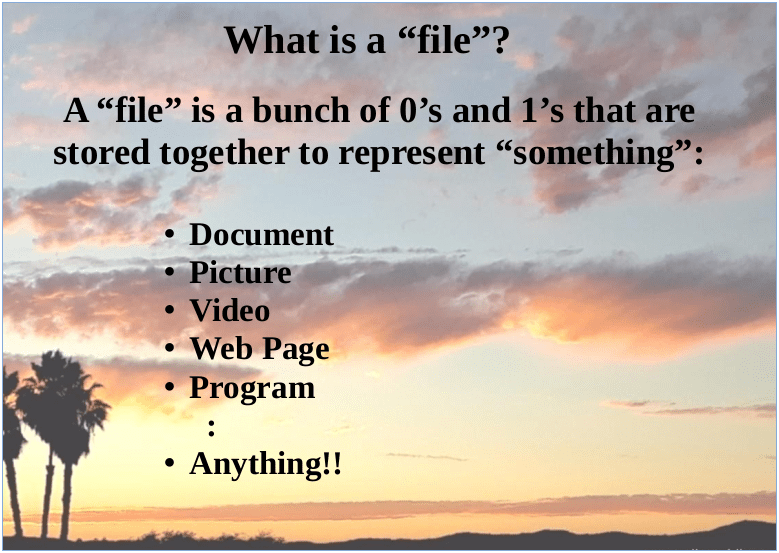
These 1’s and 0’s are called “bits” as a contraction of “binary digits”.
The computer needs a place to store all of these bits. That’s where the term “hard drive” comes in. A classic “hard drive” is made up of one or more spinning circular plates with a special magnetic surface that can be magnetized in different directions to represent a “1” or a “0”. The following picture shows what a typical “hard drive” looks like:
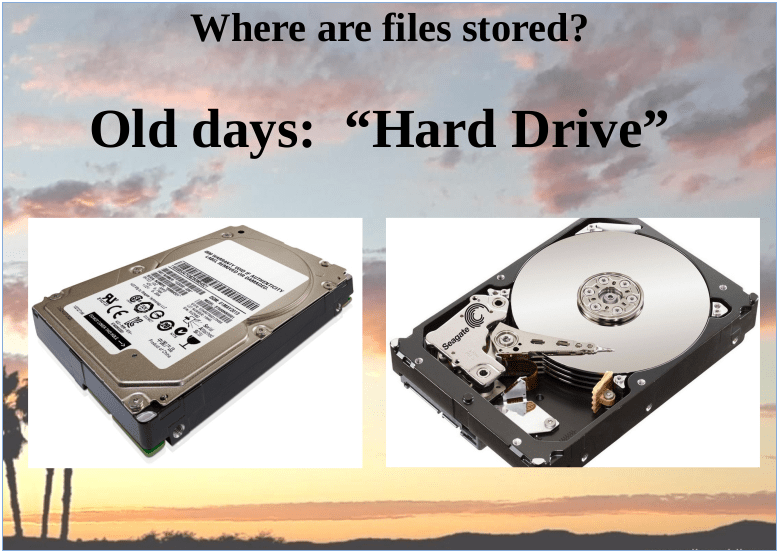
Hard drives have been in common use for home computers since the 1980’s, but recently, a purely electronic kind of “hard drive” is replacing the spinning disks. These come in a several sizes as shown here:

But regardless of how the bits are physically stored, we can still view entire file system (“hard drive”) as a long series of 1’s and 0’s.
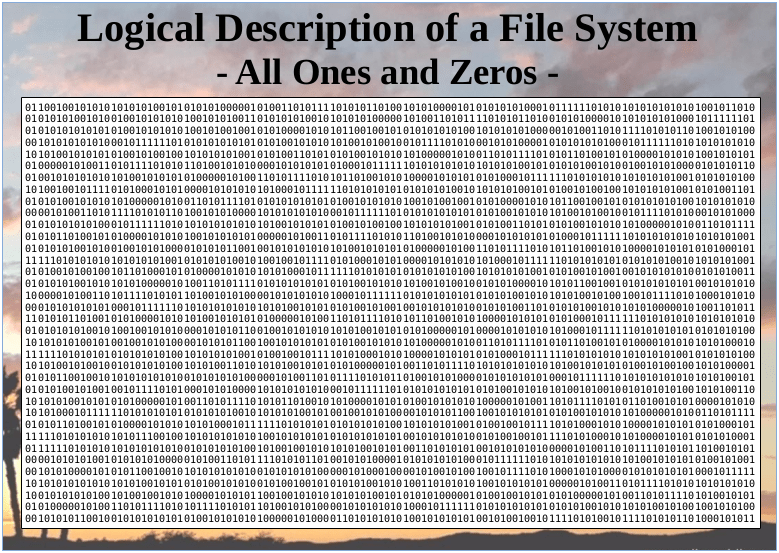
So a “hard drive” is made up of some total number of bits that defines its total capacity. It is a fixed number just as shown in the previous picture. But this “sea of bits” can be organized to make things easier to find and update. This is where the concept of a “directory” (or “folder”) comes in. Some groups of these bits are used to store the locations of logical “files” which, in turn, store things like pictures or documents or music. In the following colored drawing, the black sections represent the groups of bits that keep track of the other “files”. In other words, these black sections might store the file names and file start locations and file lengths of the other files. In other words, the black areas are like a “directory” of the other files on the drive. So as files are added or removed or resized, these “directories” are updated to keep track of them. Also, as shown in the following diagram, there can be multiple directories on a drive. There is usually a directory at the start of the drive to map out where some of the other files are located. But some of those “other files” could also be directories (as shown in black) which point to other files and possibly other directories.
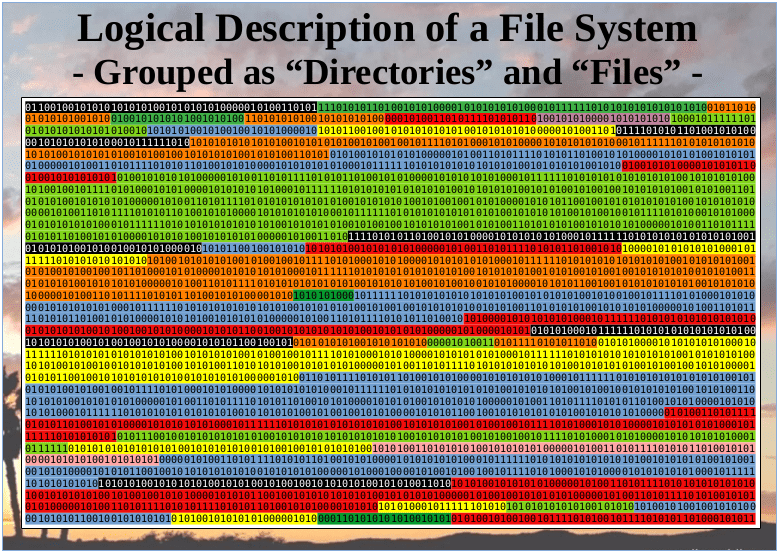
While this looks very messy on our “hard drive”, we can represent all of these directories and files more logically (for us) as a series of folders inside folders. The entire file system (or hard drive) may be thought of as one large folder:
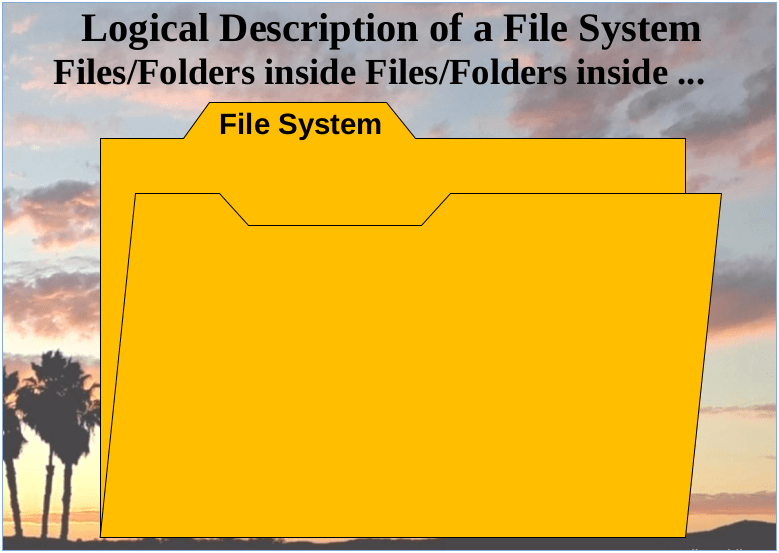
That large folder contains files (images, documents, music, etc), and it can also contain other folders.

And those other folders can contain even more files and folders as shown here:

Most modern operating systems have some way of showing you the file system as a picture. They will typically draw a “directory” as a “folder”. And clicking on a directory (folder) will show the files and other folders inside of it. The following 3 pictures show how the file systems are displayed on “Windows”, “Mac OS”, and “Linux”:
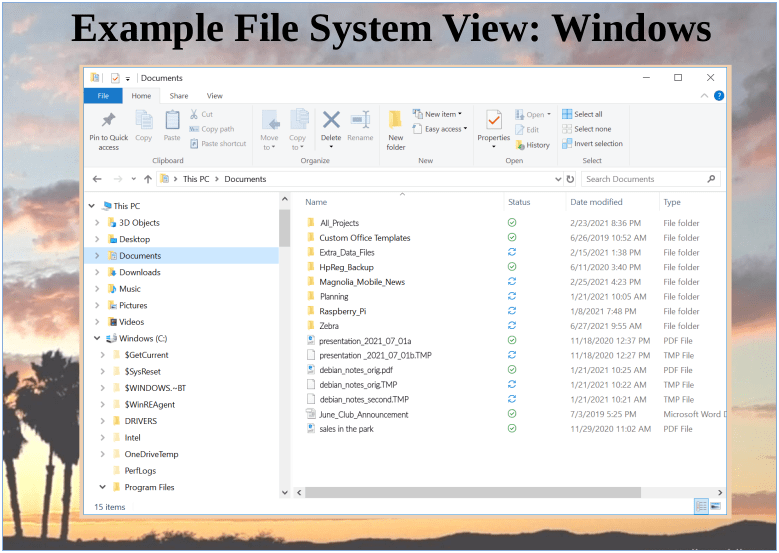
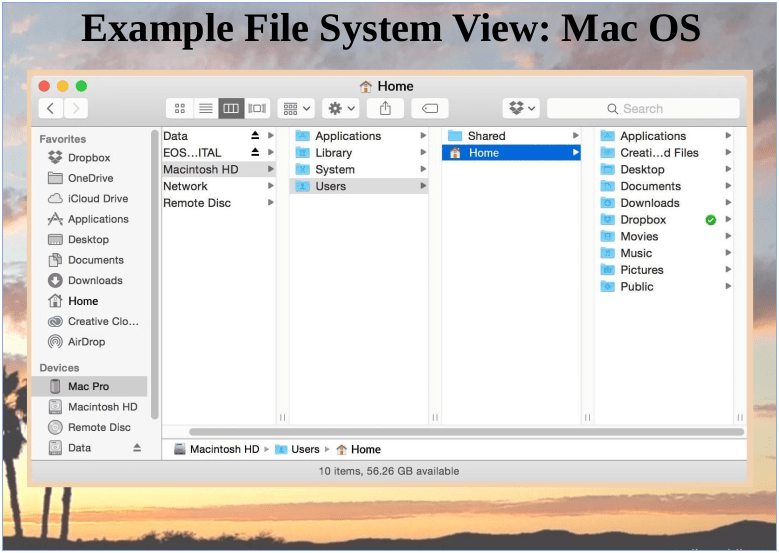

You’ll notice that while these do look different, they all share the same representation of folders that hold files and other folders. This is often called a “tree” structure because there is one “root” that may contain several branches which in turn contain even more branches and so on. It’s important to understand this and to be comfortable moving around in this “tree of files”. The next few pictures demonstrate how folders can be used to organize (group) files by both date and subject.

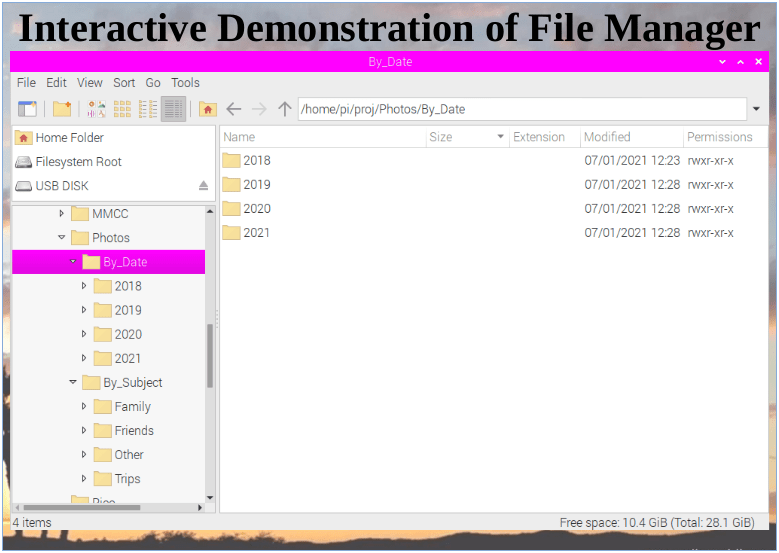
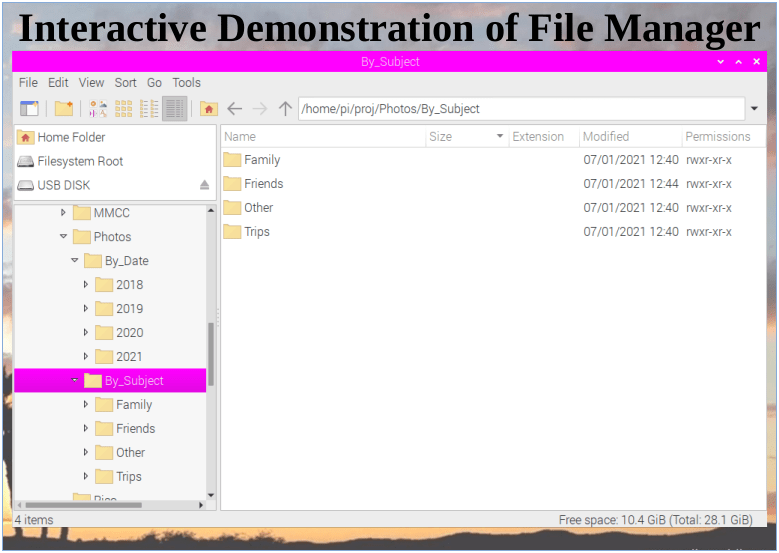
The previous discussion focused on the actual storage abstraction common to all mass storage devices (hard drives, flash drives, SSD drives, etc). However, some programs can work “on top” of the underlying file system. For example, photo organizing software can sometimes provide an abstraction of your files (photos in this case) that does not even resemble the actual storage structure of your drive. These abstractions can often be more convenient to use. For example photos can be organized by grouping them according to their common features (date, size, content, etc). This can be convenient when viewing the photos with that particular software. But it can also make it harder to find those same photos outside of that particular software. So it’s always helpful to know a little bit about the underlying file system.



This MMCC presentation was shared with the club on July 1, 2021. Here are the slides:
 Magnolia Mobile News
In addition to the “regular” file system, there are a number of remote file systems available over the Internet. These can be confusing and deceptive as described in this article about “OneDrive”:
https://www.dummies.com/computers/operating-systems/windows-10/what-is-onedrive/
==================================================
OneDrive can be confusing
Many people find OneDrive — at least the Windows 7, 8, and 10 versions of OneDrive — very confusing because, in essence, OneDrive keeps two sets of books. (Windows 8.1 OneDrive, by contrast is quite upfront about the whole process.) In Windows 10’s OneDrive, there’s the whole OneDrive enchilada stored on the web. But there’s a second, shadow, subset of OneDrive folders that are stored on your computer.
Some OneDrive users have all their web-based files and folders stored on their computers, and OneDrive syncs the folders quite quickly — what you see in File Explorer is what’s stored in the cloud, and vice versa. But other OneDrive users have only some of their OneDrive folders on their computers. File Explorer shows them only this subset of folders and hides all the others that are sitting in the cloud.
If you aren’t confused, you obviously don’t understand.
==================================================
LikeLike
The article goes on …
What OneDrive does for you
OneDrive does what all the other cloud storage services do — it gives you a place to put your files on the internet. You need to log in to OneDrive with your Microsoft account (or, equivalently, log in to Windows with your Microsoft account) to access your data.
If you log in to a different Windows 10 computer using the same Microsoft account, you have access to all your OneDrive data through the web but, surprisingly, not necessarily through File Explorer. In fact, if you look only at Windows File Explorer, you might not even know what data is sitting in your OneDrive storage.
This is one of the most confusing and dangerous parts of Windows 10. Realize that Windows File Explorer, when looking at OneDrive, is lying to you.
File Explorer offers a very simple process for copying files from your computer into OneDrive, as long as you want to put the file in a folder that’s visible to File Explorer. File Explorer lets you move files in the other direction, from OneDrive storage on to your local hard drive, but again you must be able to see the file or folder in File Explorer before you can move it.
You can share files or folders that are stored in OneDrive by sending or posting a link to the file or folder to whomever you want. So, for example, if you want Aunt Martha to be able to see the folder full of pictures of Little Billy, OneDrive creates a link for you that you can email to Aunt Martha. You can also specify that a file or folder is Public, so anyone can see it.
To work with the OneDrive platform on a mobile device, you can download and install one of the OneDrive programs — OneDrive for Mac, OneDrive for iPhone, iPad, or Android. The mobile apps have many of the same problems that you find in File Explorer in Windows 10.
In Windows 10, you don’t need to download or install a special program for OneDrive — it’s already baked into Windows.
If you have the program installed, OneDrive syncs data among computers, phones, and/or tablets that are set up using the same Microsoft account, as soon as you connect to a network. If you change a OneDrive file on your iPad, for example, when you save it, the modified file is put in your OneDrive storage area on the Internet. From there, the new version of the file is available to all other computers with access to the file. Ditto for Android devices.
LikeLike